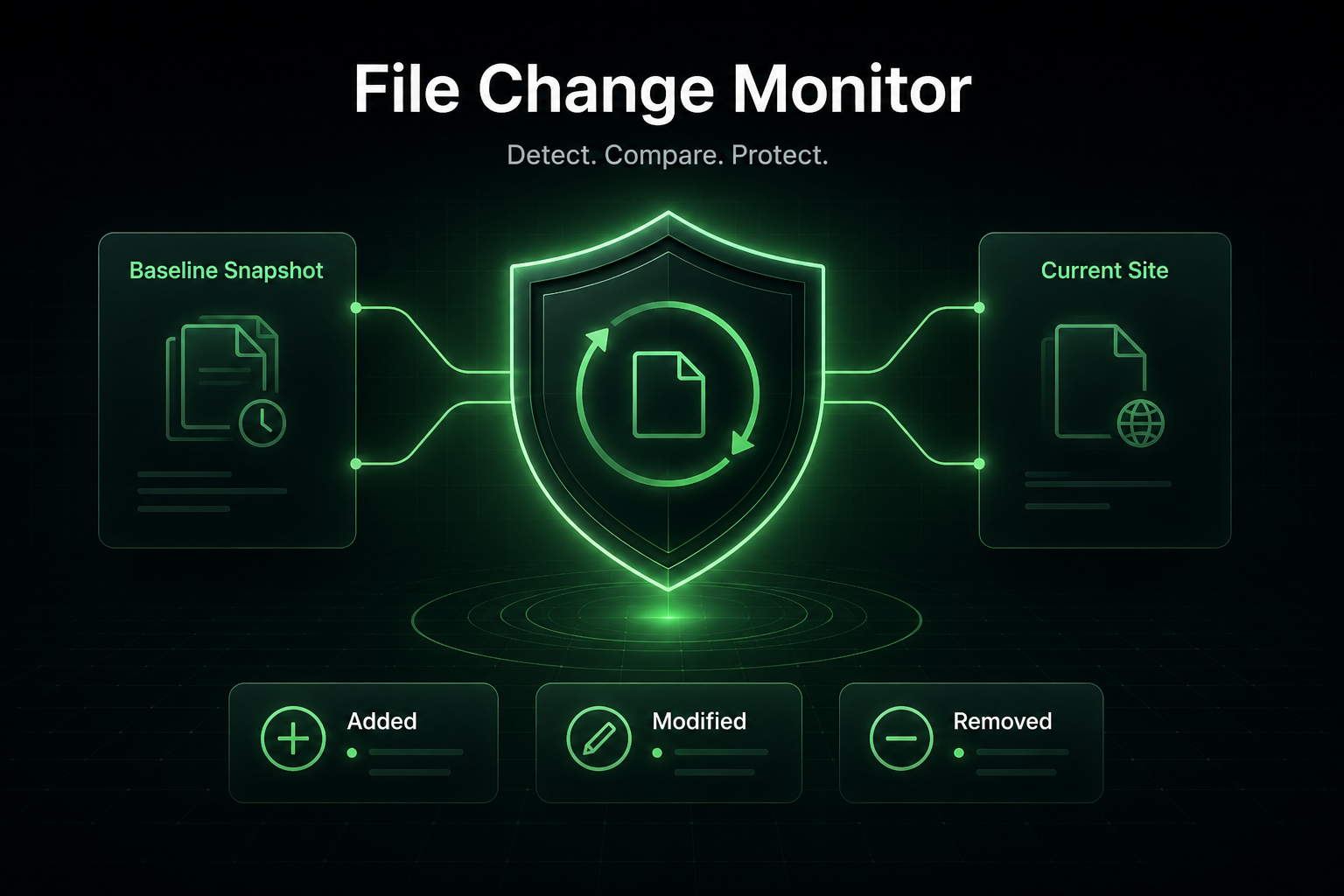
File Change Monitor compares the current WordPress file system against a trusted baseline so support teams can quickly see what was added, modified, or removed. Use it after cleanup, updates, migrations, or suspicious activity to separate expected maintenance changes from files that deserve a closer look before the baseline is refreshed.
File Change Monitor gives you a before-and-after view of the WordPress file system. It is built for post-cleanup confidence, update verification, and ongoing maintenance reviews where the question is simple: what changed since the trusted baseline?
Trusted Baseline
What it means: The baseline is the known-good file state used for comparison. Create or refresh it only when the site is clean and the current file state is trusted.
How to use it: Build the baseline after cleanup, after planned updates, or after a controlled maintenance window.
Change Groups
What it means: Results are grouped by added, modified, and removed files so technicians can work through each type of change without noise.
How to use it: Start with unexpected additions, then review modified files and confirm removals were intentional.
Review Before Refresh
What it means: Refreshing the baseline accepts the current file state as trusted, so it should be done only after questionable items are reviewed.
How to use it: Investigate surprises first, then refresh the baseline once the file system is clean and stable.
Maintenance Proof
What it means: After plugin, theme, or core updates, the monitor helps prove that changes match the work that was performed.
How to use it: Run it after updates to separate normal update activity from files that do not belong.
Important: Do not refresh the baseline until unexpected added, modified, or removed files have been reviewed.
GET PROTECTED
Lock down WordPress without opening your wallet
Install Site Lockdown Security and get Premium WordPress protection at no cost.
 Site Lockdown Security is free on WordPress.org